In this tutorial, AZDIGI will show you another way to back up DirectAdmin besides the default backup method on DirectAdmin, which is to back up DirectAdmin with FTP.
I. Introduction
Normally, when using DirectAdmin, we often use the direct backup feature on local or use Rclone to backup DirectAdmin data to Google Drive.
But if you want to push the backed-up data to another server, then this article is for you.
Note: To proceed with this article, you need to prepare an FTP account on the server where you want to store the backups.
II. Backup DirectAdmin with FTP
To backup DirectAdmin with FTP, we need to follow the following 3 steps.
Step 1: SSH into your server
Before proceeding with backing up DirectAdmin with FTP, we need to SSH or access your VPS or server as root. Or at least log in to the server with a user with sudo privileges. If you don’t know how to SSH into your VPS/Server, you can refer to the following tutorial:
After successfully SSH, we move on to step 2 to execute the commands to install ncftpd to support backing up DirectAdmin with FTP.
Step 2: Install ncftpd on DirectAdmin
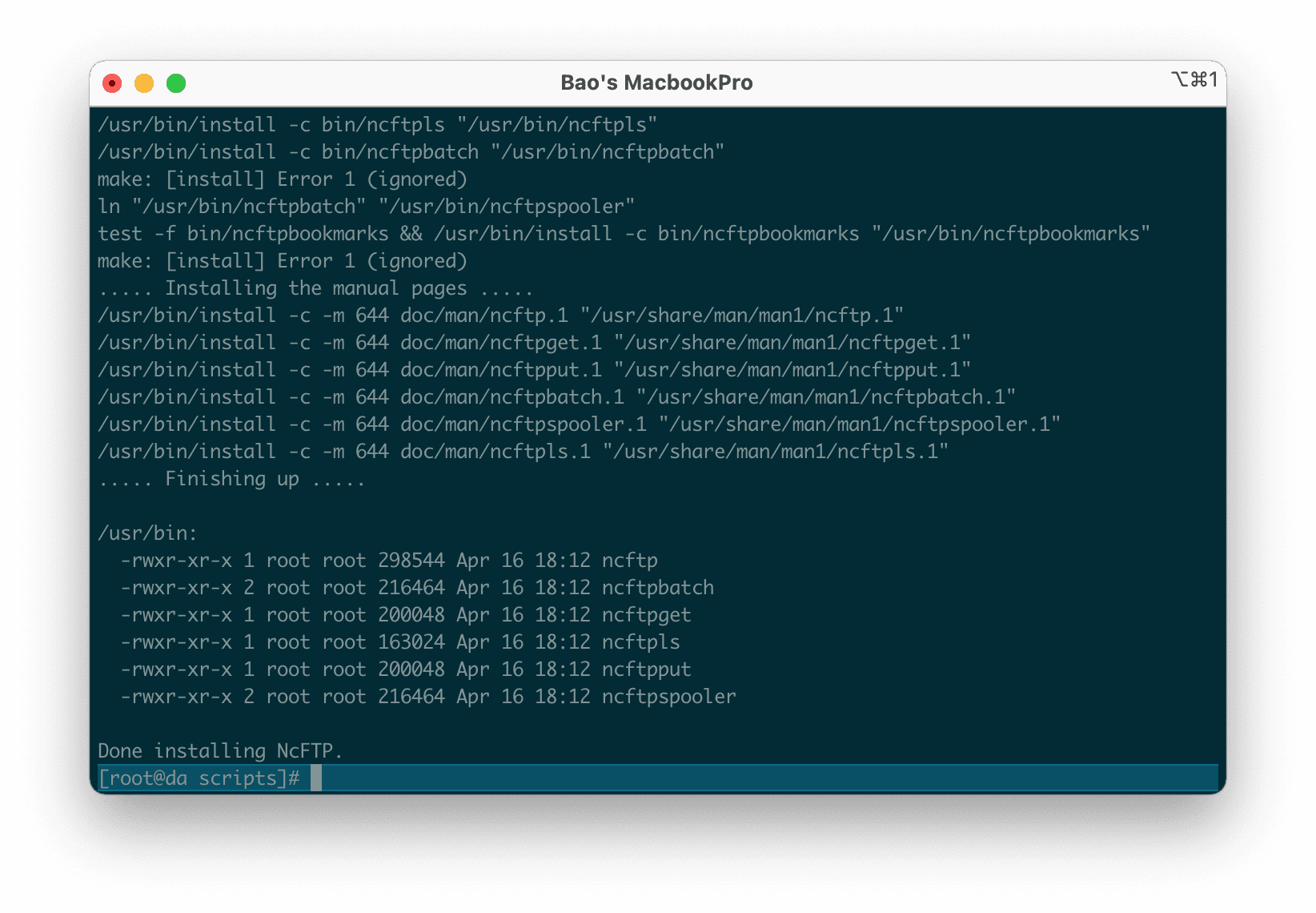
The process of installing ncftpd on DirectAdmin is relatively simple, you just need to execute the following commands.
sudo cd /usr/local/directadmin/scripts/
sudo ./ncftp.sh
The installation process takes quite a short time, for my 1 Core VPS it only takes about 2 minutes to finish.
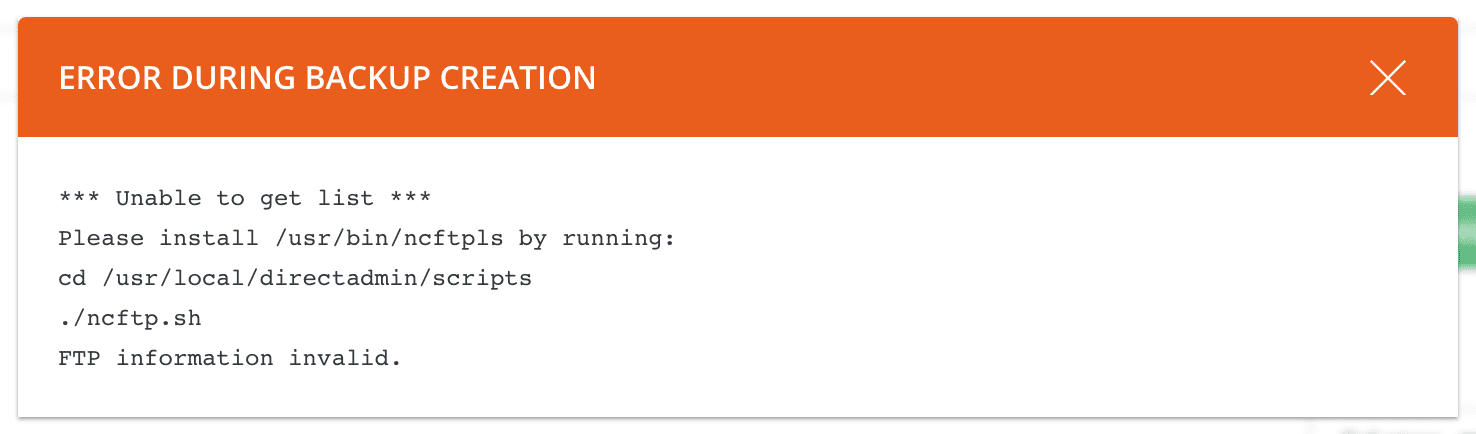
The reason we need to install ncftpd is that if we do not install this software when setting up DirectAdmin backup with FTP, we will receive the following message, requiring us to install ncftpd first.
Step 3: Set up DirectAdmin backup with FTP
At this step, you also set up as usual. You also need to access the DirectAdmin interface with Admin privileges. And select Admin Tools => Admin Backup/Transfer as shown below.
Then you set up step 1 (select the user to backup) and step 2 (select the backup time) according to your needs, but in step 3 (backup location), you set up to choose FTP as shown below. Here, you fill in the FTP account information that you have prepared before. If you use sFTP, please check the Secure FTP option.
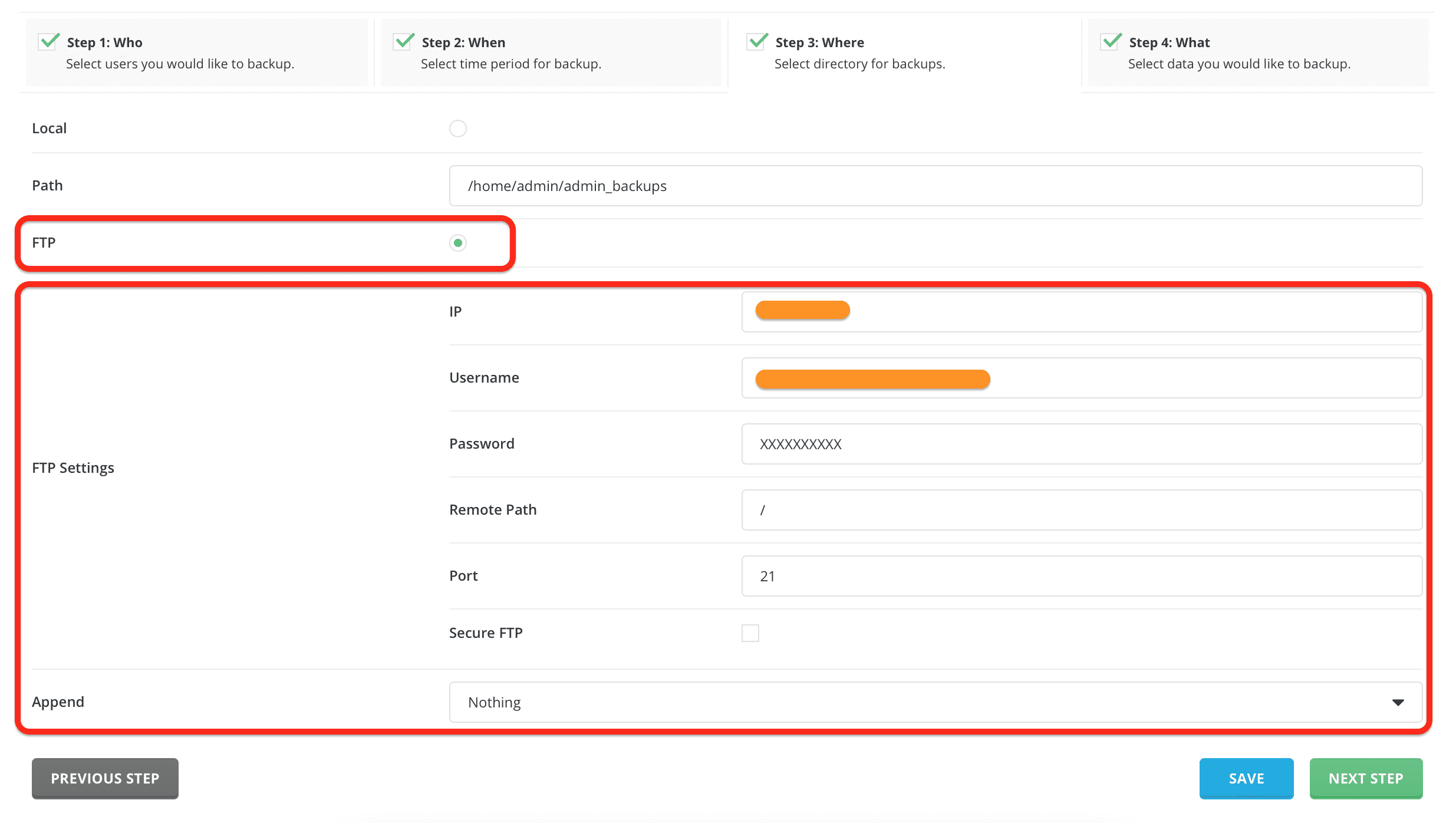
After completing this step, when you select NEXT STEP, your server will check if your FTP connection is accurate. If it is correct, you will be taken to step 4 (selecting the data to be backed up).
During the backup process, you will notice that the Backup Monitor is the same as usual for the initial stages, but from 50%, it will proceed to the step of transferring the backup file to the FTP server you have configured.
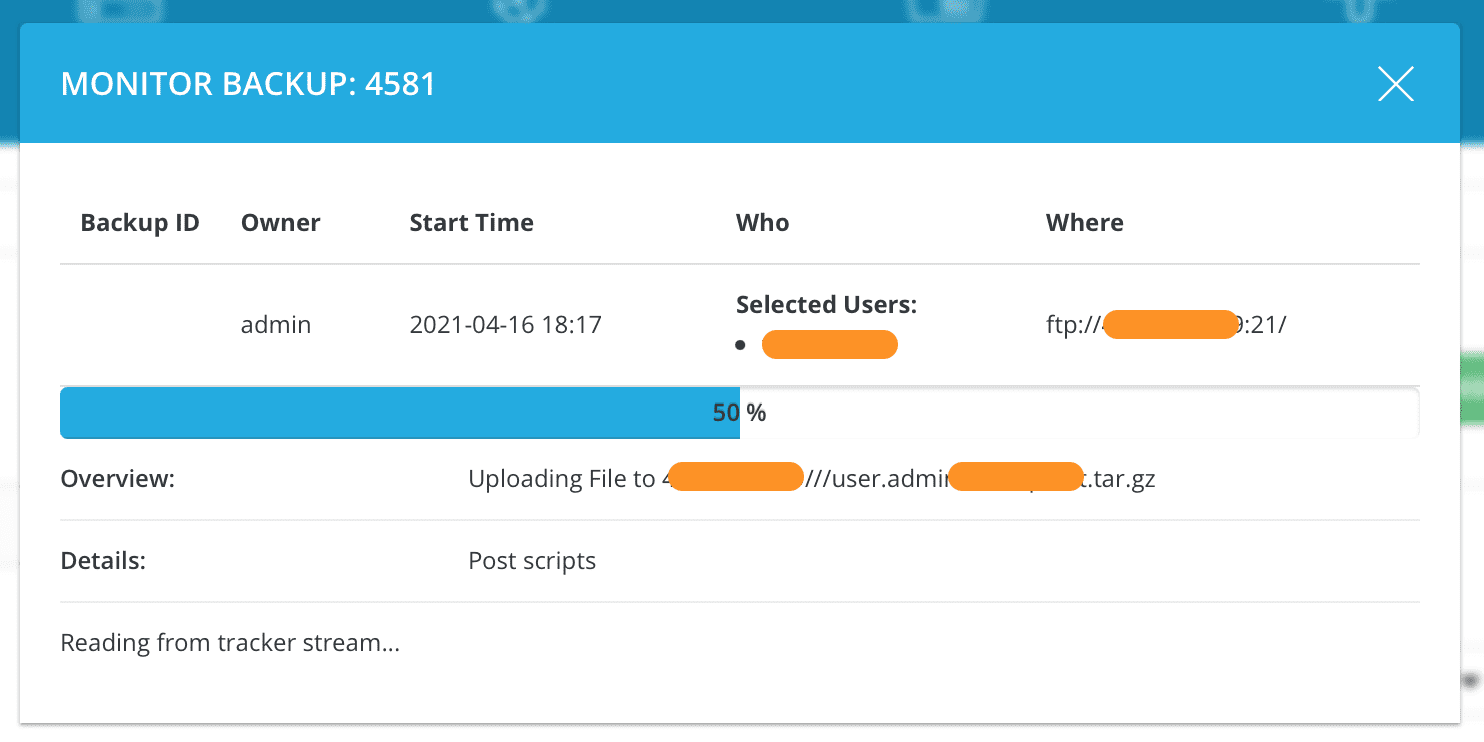
At this point, we have completed the DirectAdmin backup with the FTP process.
II. Summary
So with just 3 simple steps, we can set up DirectAdmin backup with FTP. If you are interested in other setup options, you can refer to the following two articles:
Wishing you success. See more useful articles about DirectAdmin at the following link:
If you need assistance, you can contact support in the ways below:
- Hotline 247: 028 888 24768 (Ext 0)
- Ticket/Email: You use the email to register for the service and send it directly to: support@azdigi.com .
You might also like
About the author

Thạch Phạm
Đồng sáng lập và Giám đốc điều hành của AZDIGI. Có hơn 15 năm kinh nghiệm trong phổ biến kiến thức liên quan đến WordPress tại thachpham.com, phát triển website và phát triển hệ thống.