SSL is an indispensable security certificate on today’s websites. SSL certificates help Google “like” your website more, increasing the credibility of the web for users, especially sales websites. However, many users wonder why after installing SSL, the lock is not displayed but Not Secure is displayed, as shown below, even though the website has SSL installed. So what is the cause and how to fix it? Let’s find out and fix it.
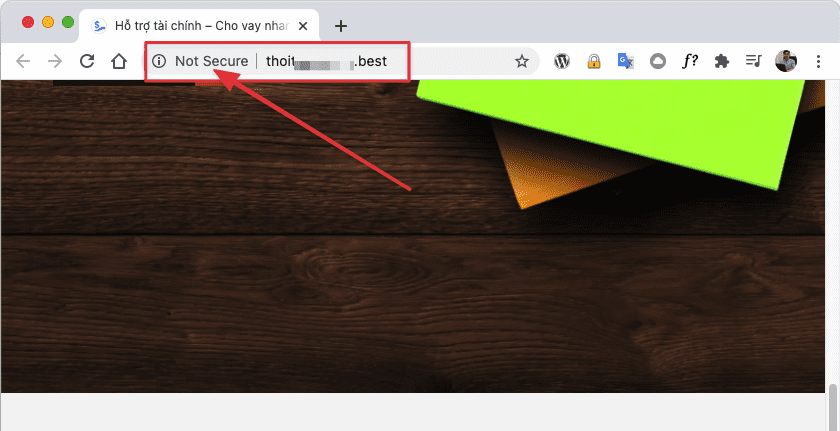
Cause
To display SSL on the website, the links in your website must run in HTTPS protocol, if the links, image links run in HTTP protocol, the padlock will not be displayed. Therefore, you need to check which links are still available in the HTTP protocol, then switch to HTTPS.
If your website has not installed SSL, please install free SSL according to the following instructions:
Check
To check, you can view-source up and press Ctrl + F and search with the keyword http to see all the links on that page. Another way, you press F12 and select the Security tab, you will see the item This Page is not secure with link mixed content.
Click on the second arrow to show the link.
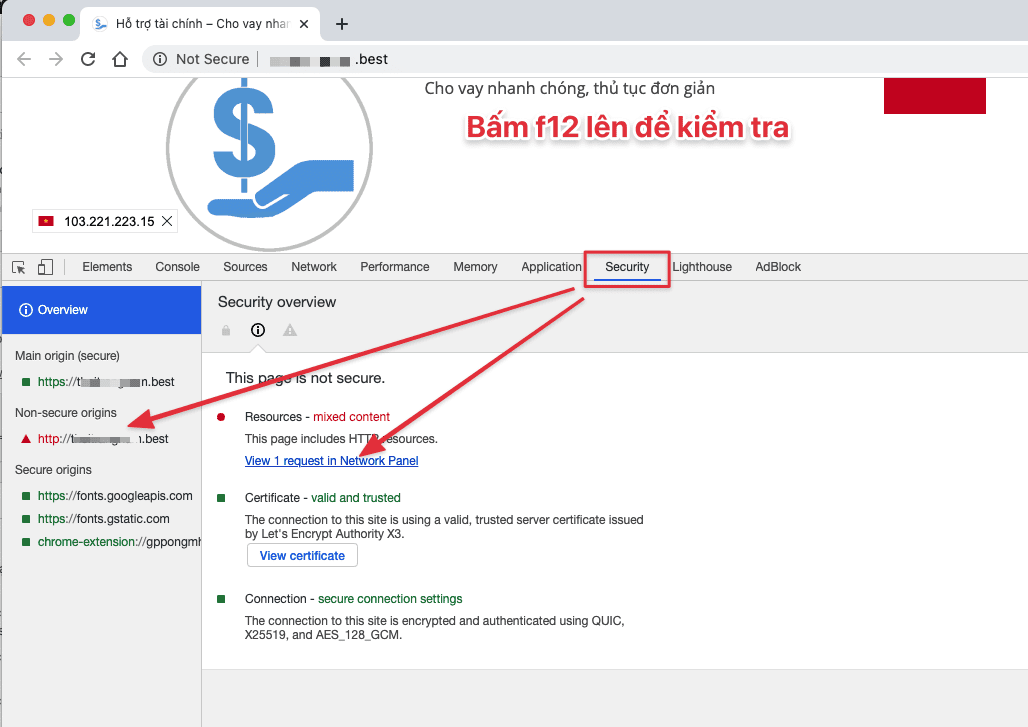
Below is my image link in the HTTP protocol, so the SSL key is not displayed. After you have identified the error, let’s started to fix it now.
There are many ways to fix it, you can edit the source code. But this way is quite complicated and requires expertise. So another way I will mention in this article is to use the Plugin to transfer the links that the Plugin finds.

Install Plugin to fix SSL error
With WordPress websites, I often use Really Simple SSL to support this, you just need to install the Plugin and configure it to fix the error.
Go to Plugin > Install New> Enter Plugin Name and choose to install as shown below. After installation is complete, click Activate to use.

When activation is complete, you will configure the following: Click Settings > SSL

select Go ahead, activated SSL!
Next, select the Settings tab and enable it all => select Save to apply.

That’s done, now log out and check if the website has a padlock. Hope this article will help you fix SSL errors on your websites.
- Hotline 247: 028 888 24768 (Ext 0)
- Ticket/Email: You can use your email to register for the service and send it directly to: support@azdigi.com
- Click on the AZDIGI website to refer to the best hosting/VPS service in Vietnam.
You might also like
- 401 Unauthorized Error: causes and how to fix
- 401 Unauthorized Error: causes and how to fix
- Install Free SSL on Hosting AZDIGI
- How to fix the blocked by CORS policy error on WordPress
- Fix the "The package could not be installed. PCLZIP_ERR_BAD_FORMAT" error on WordPress
- Fixing the 500 Internal Server Error on WordPress
About the author

Thạch Phạm
Đồng sáng lập và Giám đốc điều hành của AZDIGI. Có hơn 15 năm kinh nghiệm trong phổ biến kiến thức liên quan đến WordPress tại thachpham.com, phát triển website và phát triển hệ thống.